Lists in chapters, and notes on entries and the story
New
- Lists in chapters
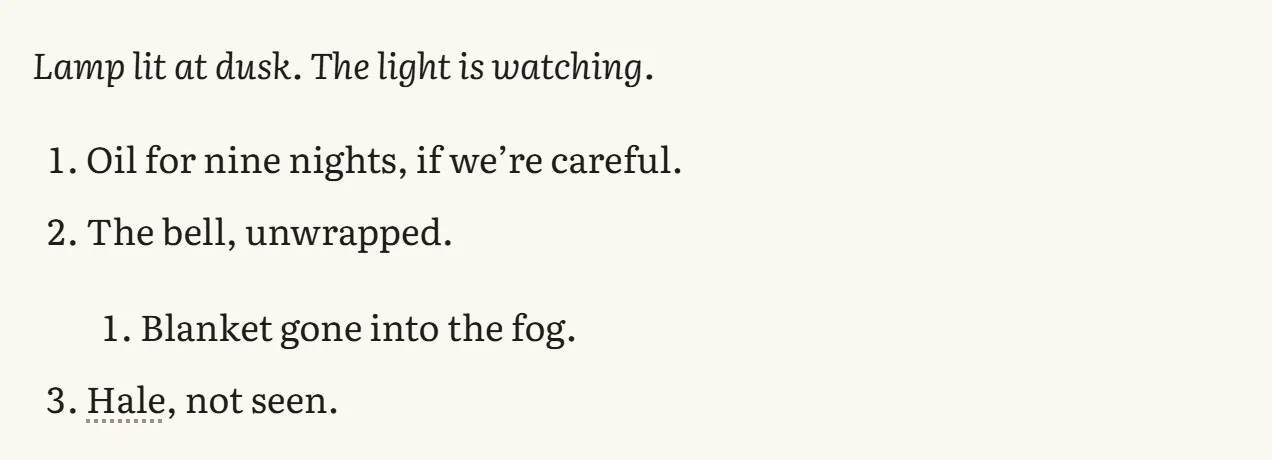
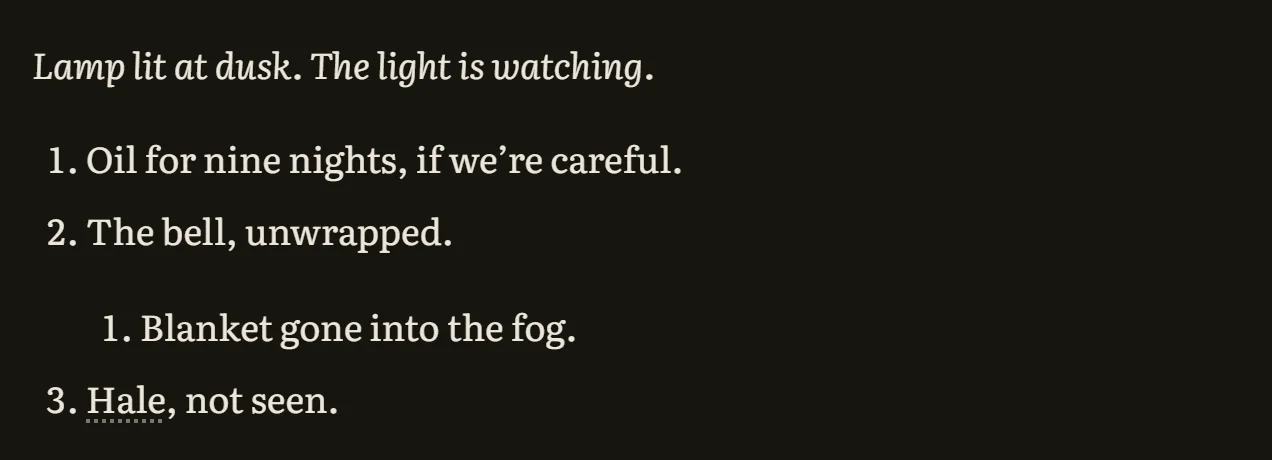
Chapters have bulleted and numbered lists, from the list buttons in the toolbar or Ctrl+Shift+8 and Ctrl+Shift+7. A list can nest and can sit inside a block quote. Typing a dash or "1." doesn't start one in a chapter, the way it does in a story bible entry, and Listen reads out each item's number.
- Notes on entries
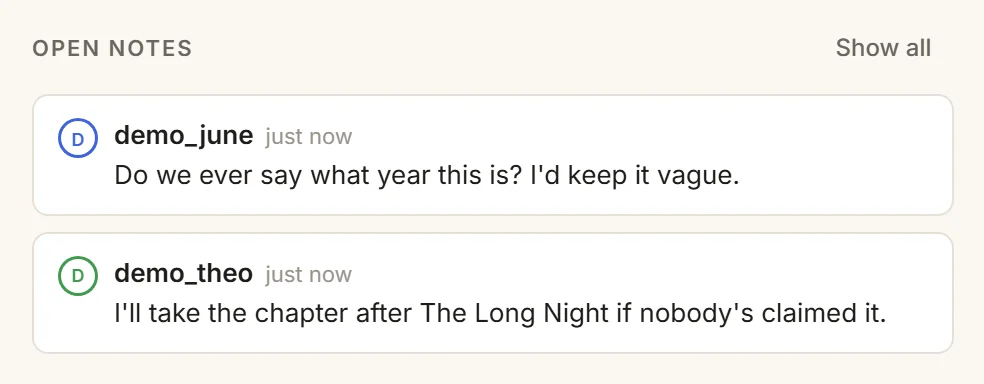
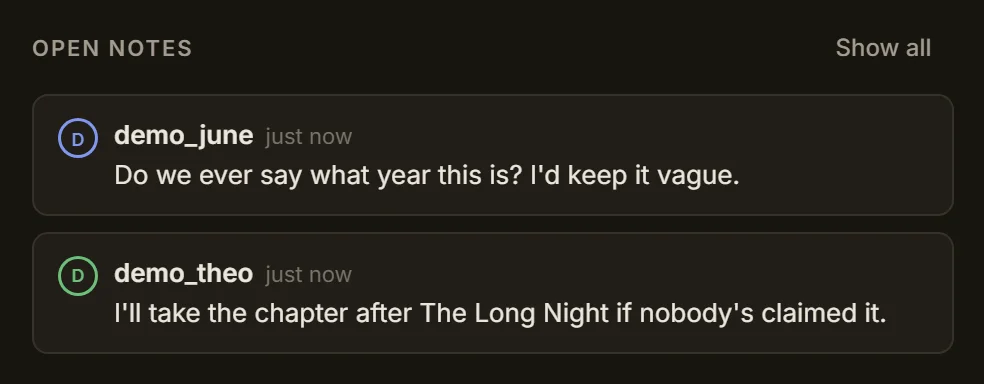
Select text in a story bible entry and add a note, just as in a chapter. It gets a card in the margin and a place in the notes panel, and replies, mentions, and resolving it send notifications as they do for a chapter. Pinned and outline entry cards show how many open notes an entry has, and the count opens the entry with the notes panel showing.
- Notes on a whole chapter or entry
The add note button at the top of the notes panel writes a note on the chapter or entry as a whole instead of a passage. These come first in the open notes, and their cards line up with the title in the margin.


- Story notes
For talk about the story itself, the notes panel has a story tab next to the chapter's or entry's own, each with its count of open notes. The overview lists the five story notes with the latest activity; clicking one opens it in the panel.
- Link previews
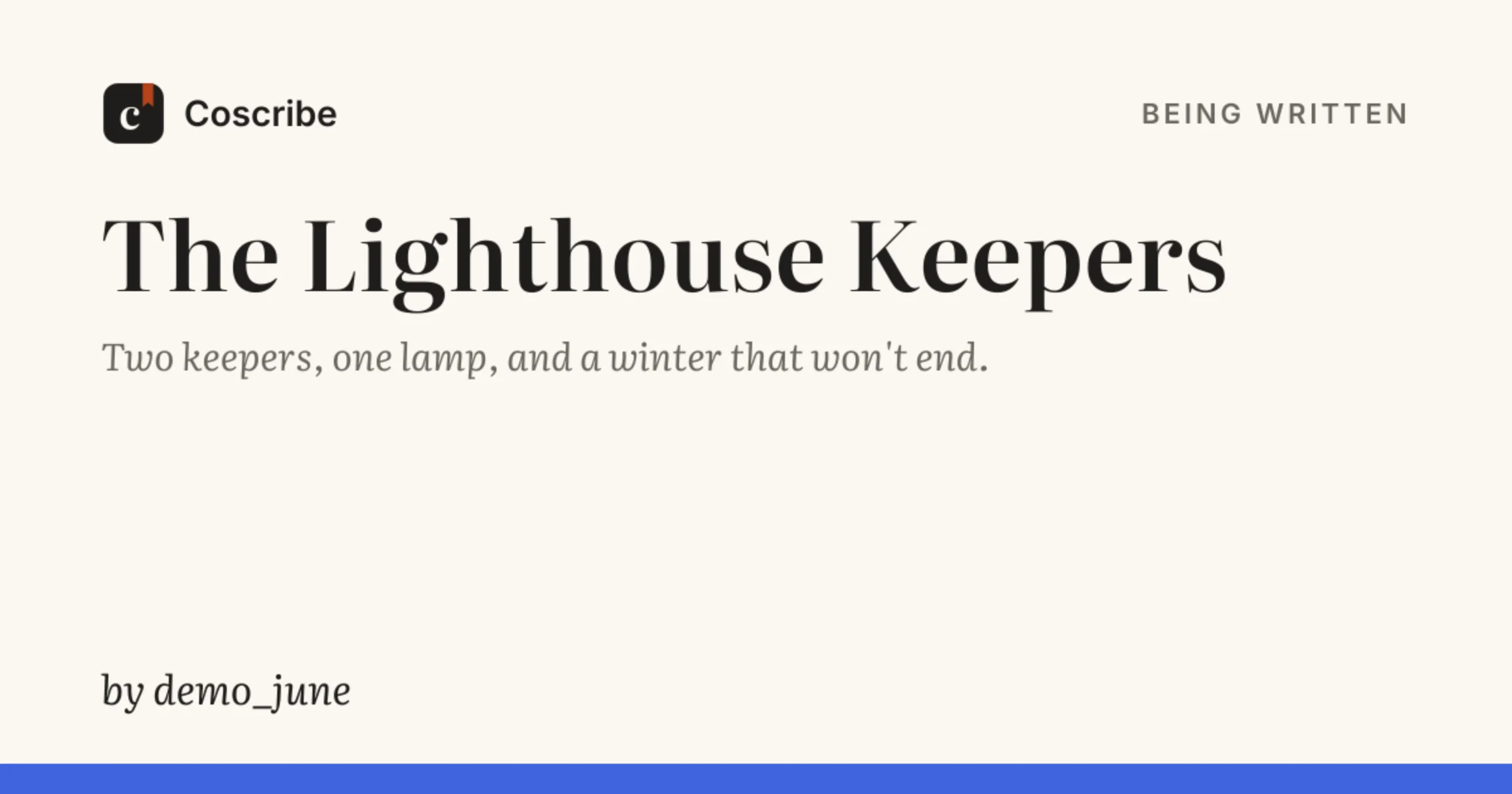
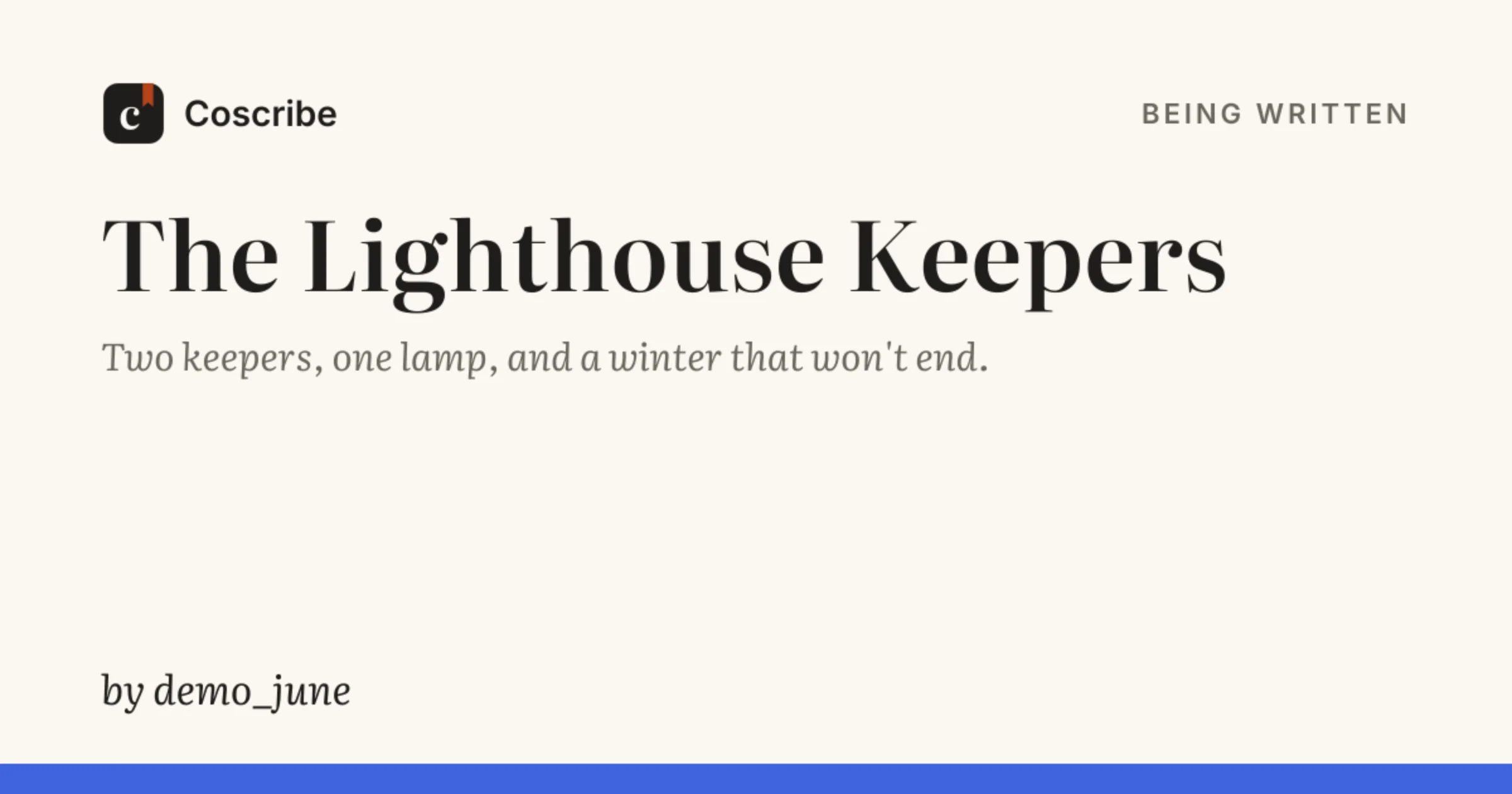
Links to Coscribe, to a public story, to a profile, and to an invite link show a card when you paste them into a chat. A story's card has its title, blurb, and writers over a band of their colors, and says whether it's finished. An invite link's card says who invited you, to which story, who else writes it, and when the link expires.
Improved
- Snapshot compare
Quoting a paragraph, changing its alignment, moving it into or out of a script, and changing a script line's element all count as changes now, as list changes already did. The space a change takes up is tinted, on the newer side for what a paragraph gained and on the older side for what it lost.
Fixed
- Shortcuts on a Mac
Shortcut hints said Ctrl on a Mac, where the key is Command. They show Mac symbols now, like ⌘B and ⇧⌘S.